Beautiful Hugo provides powerful image handling through the beautifulfigure shortcode and gallery shortcode, both integrated with PhotoSwipe 5 for full-screen lightbox viewing.
The figure / beautifulfigure Distinction
The figure shortcode is a router:
- When
disableFigureOverride = false(default):{{< figure >}}delegates tobeautifulfigure(PhotoSwipe-enhanced) - When
disableFigureOverride = true:{{< figure >}}uses Hugo’s standard figure shortcode, and{{< beautifulfigure >}}remains available for PhotoSwipe
The example site uses disableFigureOverride = true, so figure gives a plain image and beautifulfigure gives the enhanced version.
Standard Figure
With disableFigureOverride = true, the standard figure shortcode produces a basic <figure> element:

A simple figure with a caption
{{< figure src="/img/global-ike.png "width="25%" caption="A simple figure with a caption" >}}
beautifulfigure
The beautifulfigure shortcode adds PhotoSwipe lightbox support — click the image to open it full-screen.
Basic usage
{{< beautifulfigure src="/img/global-ike.png" caption="Click this image to open the lightbox" width="25%" class="center" >}}
With title and attribution
{{< beautifulfigure src="/img/global-ike.png"
  title="Global Ike"
  caption="A globe with transparency"
  attr="PurePNG"
  attrlink="https://purepng.com/photo/30733/clipart-cartoon-globe"
  width="25%"
  class="center" >}}
With caption effects
{{< beautifulfigure src="/img/global-ike.png" caption="Hover to see the caption slide in" caption-effect="slide" width="25%" class="center" >}}
{{< beautifulfigure src="/img/global-ike.png" caption="Hover to see the caption fade in" caption-effect="fade" width="25%" class="center" >}}
With white background (for dark mode)
Add class="white" to give the figure a white background, which helps images with transparent backgrounds look clean in dark mode:
{{< beautifulfigure src="/img/global-ike.png" caption="White background for dark mode" class="white center" width="25%" >}}
With a custom background color
class="white" only applies in dark mode. Use background-color to set an explicit color that applies in both light and dark mode. This is useful when pure white is too bright:
{{< beautifulfigure src="/img/global-ike.png" caption="Custom background color" background-color="#ffffff5b" class="center" width="25%" >}}
The value must be a plain CSS color: a hex code, a color keyword, an rgb()/rgba()/hsl()/hsla() function, or a var(--token) reference. Other values stop the build.
All parameters
| Parameter | Type | Default | Description |
|---|---|---|---|
src | string | — | URL of the image |
link | string | value of src | URL of the full-size image (for lightbox) |
thumb | string | — | Thumbnail URL |
alt | string | caption or src | Alt text for the <img> |
caption | string | — | Caption text below the image |
title | string | — | Title heading in the figcaption |
attr | string | — | Attribution text |
attrlink | string | — | URL for the attribution |
class | string | — | CSS class on the <figure> element |
size | string | — | PhotoSwipe dimensions: WIDTHxHEIGHT (e.g. 1024x768) |
width | string | — | CSS max-width on the wrapper div |
caption-position | string | — | Position class for the caption |
caption-effect | string | — | Effect class: slide, fade, appear |
background-color | string | — | CSS background color behind the image, in both light and dark mode |
Gallery — Manual Mode
Place beautifulfigure shortcodes inside a gallery shortcode to create a responsive grid:
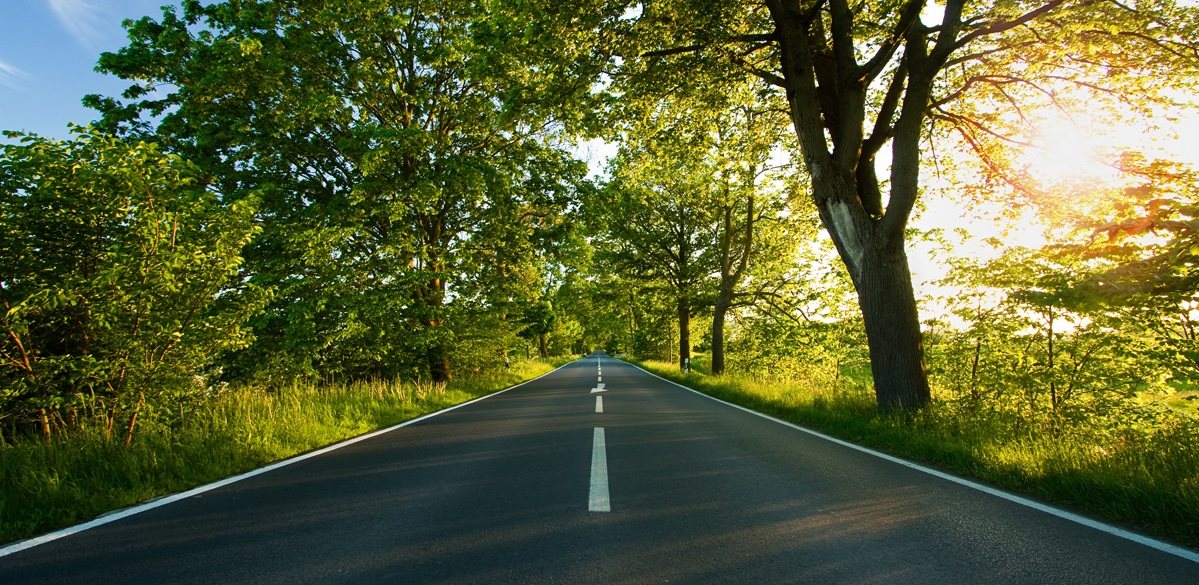



{{< gallery caption-effect="fade" hover-effect="grow" >}}
{{< beautifulfigure src="/img/gallery/sunset.jpg" caption="Sunset" >}}
{{< beautifulfigure src="/img/gallery/forest.jpg" caption="Forest" >}}
{{< beautifulfigure src="/img/gallery/mountain.jpg" caption="Mountain" >}}
{{< /gallery >}}
Gallery — Directory Mode
Point the gallery shortcode at a directory under /static/ and it will auto-populate from all images found there. Filenames are humanized into captions (e.g. sunset.jpg becomes “Sunset”). Image dimensions are read at build time, so the lightbox does not need to download the full-size images until they are opened.



Thumbnail detection works by convention: if an image file contains the thumb suffix (default -thumb), it is used as the thumbnail for the matching full-size image. For example:
lake.jpg→ full-size image, caption “Lake”lake-thumb.jpg→ thumbnail forlake.jpg
{{< gallery dir="/img/gallery/" caption-effect="fade" >}}
Gallery Parameters
| Parameter | Type | Default | Description |
|---|---|---|---|
dir | string | — | Directory to auto-populate from: a folder inside the page bundle, or a path relative to /static/ |
thumb | string | -thumb | Suffix that identifies thumbnail files |
caption-position | string | bottom | bottom, center, or none |
caption-effect | string | slide | slide, fade, or appear |
hover-effect | string | zoom | zoom, grow, shrink, slidedown, or slideup |
hover-transition | string | — | Set to none to disable hover transition |
Page Bundles and Image Processing
When an image lives in a page bundle next to index.md (or under your site’s assets/ directory), Hugo can process it. beautifulfigure and gallery then do more work for you:
beautifulfigureemits asrcsetwith resized variants (480, 800, 1200, and 1600 pixels wide by default, never wider than the source) and fills in the PhotoSwipe dimensions, sosizeis not needed.galleryin directory mode accepts a folder inside the bundle, for exampledir="photos". Square thumbnails are generated automatically, so no-thumbfiles are needed.
{{< beautifulfigure src="forest.jpg" caption="A page resource" >}}
{{< gallery dir="photos" >}}
Images under static/ are served as they are. See Configuration — Image Processing for the imageProcessing, imageWidths, and bigimgWidth settings.
Markdown Images
Plain Markdown images go through a render hook, so they get the same processing without a shortcode:

When the path resolves to a page-bundle or assets/ image, the theme emits a srcset with the same resized variants, plus width and height so the browser can reserve the space. The title text becomes the title attribute and the alt text becomes alt. Every image gets loading="lazy".
Images under static/, remote URLs, and SVGs cannot be processed, so they get a plain <img>. Set imageProcessing = false to serve all images unchanged.
Sizing Markdown images
Markdown attributes on the line after the image set the display size:

{width=300 .center}
width and height are copied to the <img>. A bare number or a quoted px value (width="400px") also caps the resized variants, so a 300 pixel image does not download a 1600 pixel file. Other values such as width="50%" are passed through unchanged, as are other attributes such as class. This needs two settings in the site configuration:
[markup.goldmark.parser]
  wrapStandAloneImageWithinParagraph = false

[markup.goldmark.parser.attribute]
  block = true
Without wrapStandAloneImageWithinParagraph = false, Hugo attaches the attributes to the surrounding <p> instead of the image.
Markdown images are not added to the PhotoSwipe lightbox. Use beautifulfigure or gallery for that.
PhotoSwipe Lightbox
All images rendered through beautifulfigure or gallery are automatically integrated with PhotoSwipe 5. Clicking any image opens a full-screen lightbox with:
- Pinch-to-zoom on touch devices
- Swipe/keyboard navigation between images in a gallery
- Automatic image dimension detection
Opting out
Add the no-photoswipe class to any <figure> element to exclude it from the lightbox:
<figure class="no-photoswipe">
  <img src="/img/global-ike.png" alt="No lightbox" />
</figure>
Specifying dimensions
For best performance, provide the size parameter with the image dimensions:
{{< beautifulfigure src="/img/global-ike.png" size="1920x1080" >}}
If size is not provided, the dimensions come from Hugo when the image is a page resource. Otherwise PhotoSwipe auto-detects them.